

Grant Access to Google Analytics 4
Add Outbound.com to your Google Analytics 4 property in four quick steps so we can measure how your website is performing.
So we can see how your website is performing and connect it back to your campaigns, Outbound.com needs access to your Google Analytics 4 (GA4) property. Adding us takes about two minutes — here's how.
The short version: You'll add services@outbound.com as an Administrator
on your Google Analytics account. That lets us view and manage your analytics
so we can measure results — you stay in control and can change access any
time.
Open the Admin area
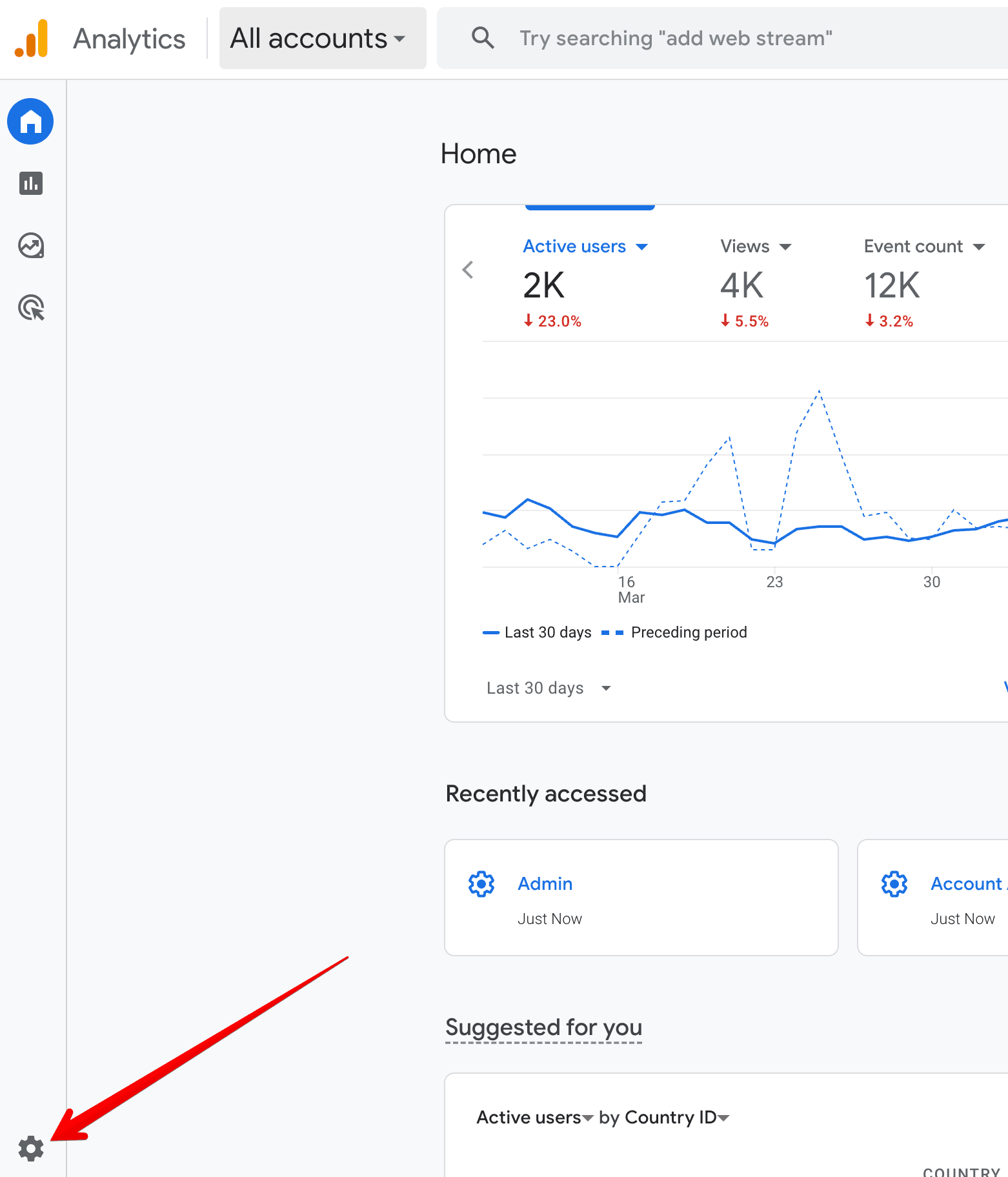
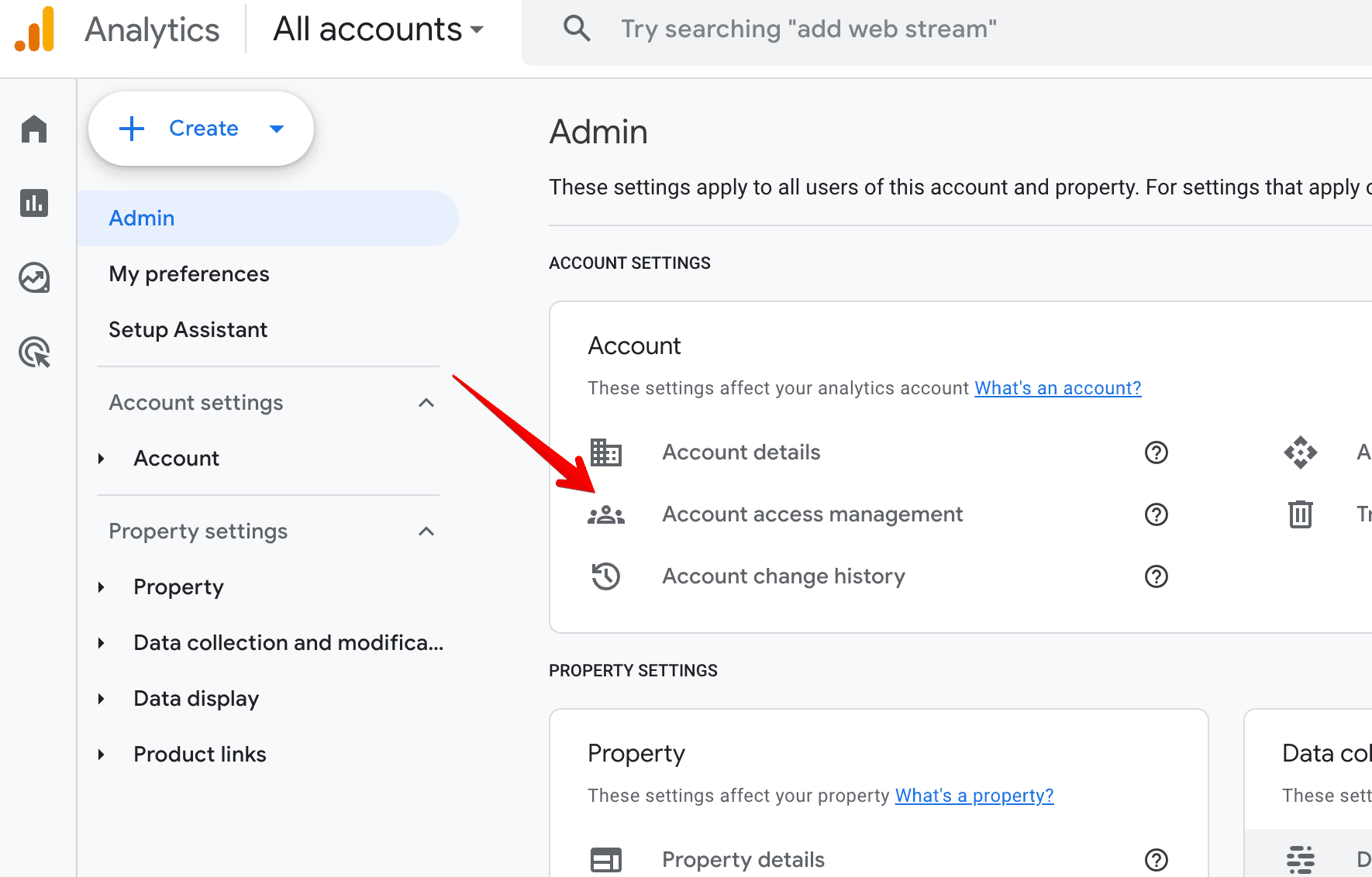
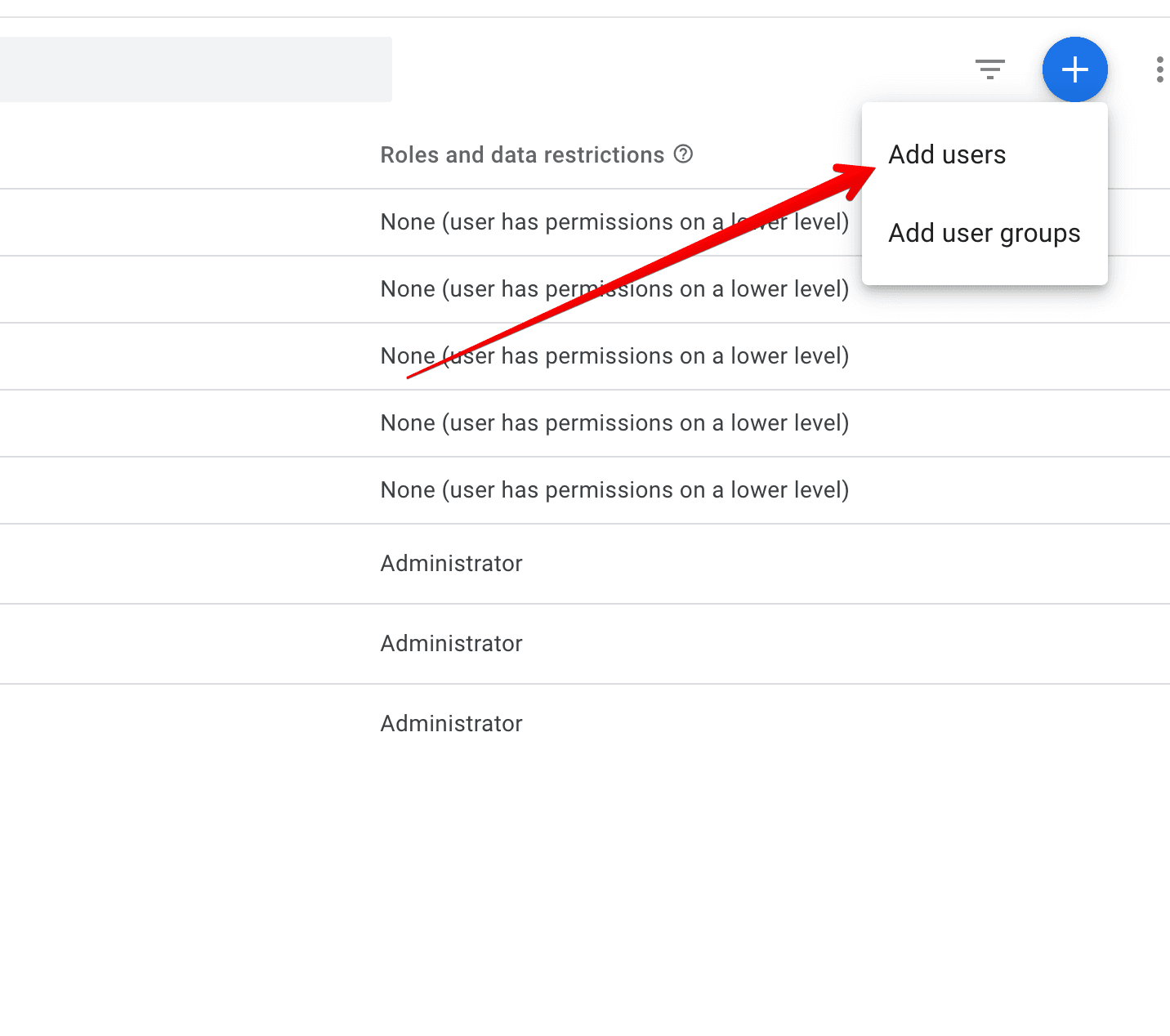
Log in to Google Analytics and, from the Home screen, click the Admin gear icon in the bottom-left corner.
Invite Outbound.com as an Administrator
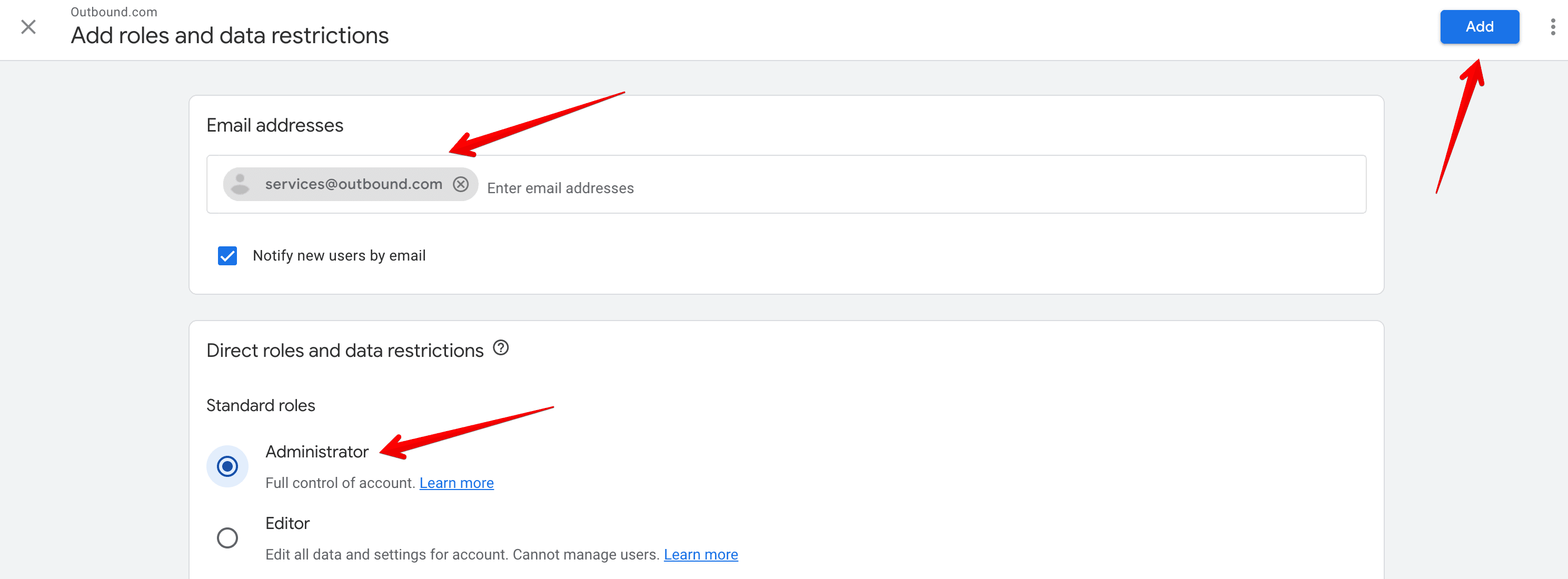
Enter our email in the email box, select Administrator, and click the blue Add button in the top-right.
What happens next
We accept the access and start reviewing your analytics — traffic, conversions, and how visitors move through your site — so we can measure your campaigns and sharpen what's working.
Still stuck?
Menu looks different, or not sure whether you have a Google Analytics account? Let us know and we'll help you get us connected.